Formatting SQL Updated
AKML SQL reformats T-SQL according to a formatting style. It fixes indentation, line breaks, commas, keyword casing, and more — without changing what the query does. If the formatter cannot prove the result is equivalent, it leaves your original SQL unchanged.
Format the current query
- Click inside the query window.
- Press Ctrl+K, Y (default), or use the AKML SQL menu -> Format Document. Format Document is also on the editor's right-click menu.
The whole document is reformatted. The operation is undoable with Ctrl+Z.
When formatting finishes, the status bar shows which style was used, for example Formatted with 'Khamis Style'. If the active style could not be loaded, you are warned and the default style is used.
Format only a selection
- Select the lines you want to reformat.
- Use the AKML SQL menu -> Format Selection.
Only the selected region changes.
Protect code from the formatter
Wrap hand-tuned SQL in noformat comments:
-- noformat
SELECT   weird   spacing   FROM   dbo.LegacyTable
-- endnoformat
The region stays exactly as written. SQL Prompt's -- SQL Prompt formatting off / -- SQL Prompt formatting on comments work too.
Pick a format style
AKML SQL ships with several built-in styles; the default is "Khamis Style". To switch:
- use the AKML SQL menu -> Active Style and pick a style (the active one is ticked), or
- right-click in the query window -> Active Style, or
- choose Active style in Options -> Format.
The new style is used straight away. The active style's name is shown in the status bar (you can turn that off in Options).
Edit styles with live preview
Open the Format Styles window from the AKML SQL menu -> Active Style -> Edit Styles…, or from Options -> Format -> Edit formatting styles….
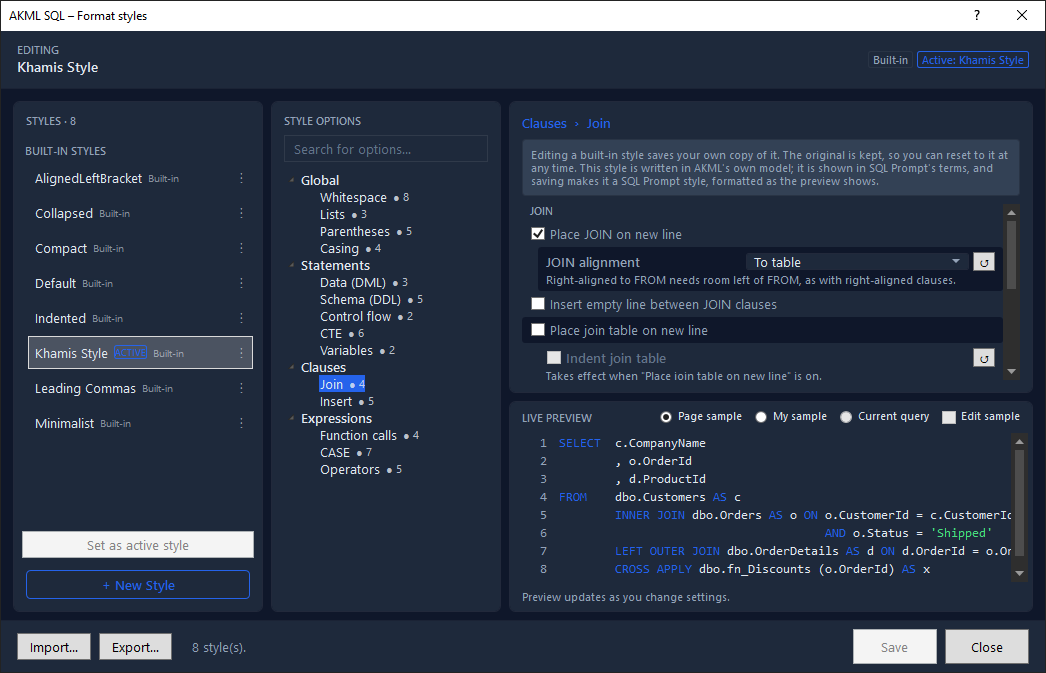
- Left: the style list. Your own styles come first, then team styles, then the built-in styles. Click a style to edit it; Set as active style makes it the one Format SQL uses. The ⋮ button (or a right-click) on a style offers Set Active, Copy, Rename, Delete, Reset to built-in and Export.
- Middle: the option pages, grouped the way SQL Prompt groups them (lists, joins, casing, and so on).
- Right: the options of the selected page and a live preview. The preview reformats the sample a moment after each change and briefly highlights the lines whose layout changed. By default each page previews code its own options act on (Page sample); choose My sample to preview your own SQL, and Edit sample to change it.
Built-in styles can be edited too: your changes are saved as your own copy, and Reset to built-in brings back the original. Use Copy to start a new style from an existing one; you are asked for its name.
Find an option. Type in Search for options… (or press Ctrl+F). The page list is narrowed to the pages with matches, each with its number of matches, and the matching options are highlighted. Enter jumps to the first match; Esc clears the search.
See what you changed. An option whose value differs from SQL Prompt's default is shown in bold, with a ↺ button beside it that puts it back to that default. Each page in the list shows how many of its options are changed.
Keyboard.
| Key | Action |
|---|---|
| Ctrl+S | Save the style |
| Ctrl+F | Search for options |
| F2 (in the style list) | Rename the style |
| Delete (in the style list) | Delete the style (not a built-in, read-only team or active style) |
| Enter (in the style list) | Make the style active |
| F1 | Open this help page |
Choose what Format SQL does
In Options -> Format, under When you run Format SQL, AKML SQL will:, choose what Format Document and Format Selection do to your code:
- Apply layout — lay out line breaks and indentation with the active style. Turn it off to keep your own spacing and only apply the other actions.
- Apply casing — change keywords, functions and data types to the style's casing.
- Semicolons — insert a semicolon after each statement, remove them, or leave them as written.
- Square brackets — put square brackets around names, remove the ones names don't need, or leave them as written.
- Expand wildcards — replace
SELECT *with the table's column list. - Qualify object names — add the schema to table names (
Productsbecomesdbo.Products).
Expand wildcards and Qualify object names need a query window connected to the database.
Import a Redgate SQL Prompt style
If your team uses SQL Prompt, you can import its style files (.json, or .sqlpromptstylev2 from SQL Prompt 9):
- Open the Format Styles window.
- Click Import… and choose the file.
- AKML SQL adds it as a new style and reports any settings it could not map.
Export… saves a style back to a SQL Prompt style file, so teams mixing both tools can share one style. If the style has unsaved changes, you are asked whether to save them first.
Share styles with your team
Use a team style folder. Put your team's styles in a shared folder (a network share works), then set Team style folder in Options -> Format to that folder. Everyone who points at it sees those styles in a TEAM STYLES group in the style list.
- Team styles are read-only unless you can write to the folder. You can still Copy a read-only team style to make one of your own.
- When a style with the same name exists in more than one place, your own style wins over a team style, and a team style wins over a built-in one.
- If the folder can't be reached (for example, you are off the network), the list says Team styles unavailable — ‹folder› can't be reached, and your other styles keep working.
Or copy the files. Your own styles are stored as plain JSON files:
%AppData%\AKML SQL\profiles\{name}.akmlstyle
Copy an .akmlstyle file into a teammate's profiles folder, or use export/import in the Format Styles window, and the style appears in their list.
For the full option list and the style file format, see the Formatter reference and the Configuration reference. Every formatting setting in Options is described in Options.