Options New
Every AKML SQL setting lives in one Options window. This page walks through it page by page, in the order the pages appear in the window.
Use the Options window
Open it from the AKML SQL menu -> Options….
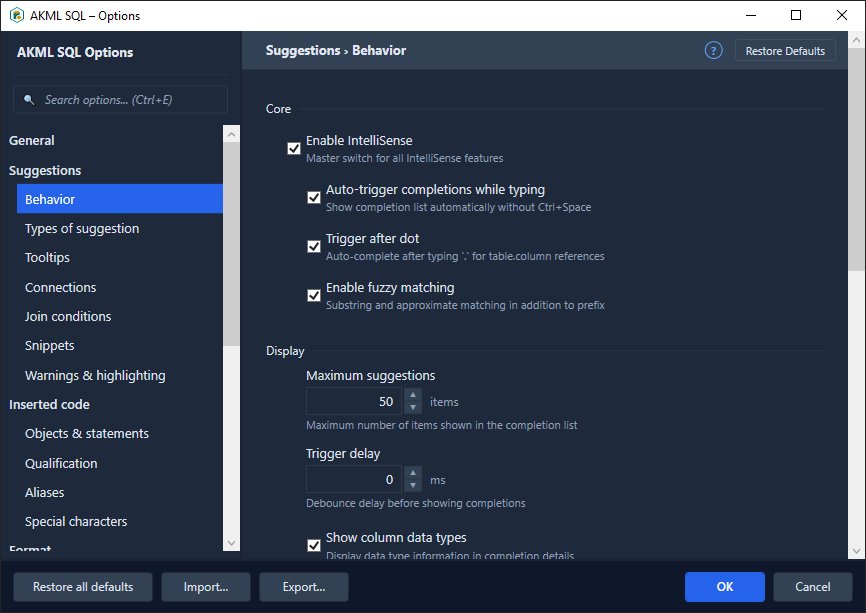
- Pages. The tree on the left has twelve pages: General; Suggestions (Behavior, Lists & connections, Warnings & highlighting); Inserted code; Format; Queries (Results & execution, History, Color); Editor; Code analysis; and AI assistance. A page is divided into titled sections. The band at the top of each page shows where you are, for example Suggestions › Behavior.
- Find a setting. Type in Search options… (or press Ctrl+E or Ctrl+F) and pick a result. The window jumps to that setting and highlights it.
- What's on this page? The ? button in the page band shows a short description of the page.
- Help. Press F1 to open the section of this page that describes the page you are on.
- Restore defaults. Restore Defaults in the page band resets the current page. Restore all defaults at the bottom resets every page. You are asked to confirm first, and told about anything else that will be removed, such as saved AI agents.
- Import… / Export… save all your settings to a file, or load them from one, so you can copy your setup to another machine.
- OK saves your changes. Cancel (or Esc) closes the window without saving anything.
Some settings only take effect after SSMS restarts. Their descriptions say so.
A setting that depends on another one is indented under it, and is greyed out while its parent is off. Hovering over it tells you which setting it depends on.
General
- Theme — the colors of the AKML SQL windows: Dark, Light, or System (follow Windows). Changing it reopens the Options window in the new theme; your other changes are kept.
- Check for updates automatically — look for a new version once a day when SSMS starts.
- Send anonymous error reports — send error log entries to help fix problems. No personal data, machine name or IP address is collected.
- Configuration file and Log directory — where your settings and logs are stored. Useful when you report a problem.
- Version — the version of AKML SQL you are running.
Suggestions › Behavior
How the suggestion list behaves while you type.
Completion
- Enable IntelliSense — turns AKML SQL suggestions on or off. Everything else on this page depends on it.
- Auto-trigger completions while typing — show suggestions as you type. When off, press Ctrl+Space to ask for them.
- Trigger after dot — show suggestions after you type a
., for example after a table alias. - Enable fuzzy matching — also match letters in the middle of a name, not only the start.
- Maximum suggestions — the most items the list shows.
- Trigger delay — how long to wait after you stop typing before the list opens (in milliseconds; 0 opens it at once).
- Show column data types, Show nullability info, Show PK/FK indicators — what each column suggestion shows beside its name.
- Make popups transparent when Ctrl is held — hold Ctrl to see the code under the suggestion list.
- JOIN clause assistance — after
JOIN, suggest related tables first, with the fullONcondition built from their foreign keys. - Suggest table aliases — give inserted tables a short alias, for example
Orders o. - Disable native SSMS IntelliSense — turn off SSMS's own IntelliSense so the two lists don't compete. Recommended.
- Commit with Space and Commit with Dot — let Space or
.accept the highlighted suggestion, as well as Tab and Enter. - Show snippets in the completion list — include snippet shortcuts (such as
ssf) in the list.
Tooltips
- Show the object definition box — when a table, view or procedure is highlighted in the list, show its columns, details and script beside the list.
Join conditions
- Use matching column names when no FK exists — when two tables have no foreign key between them but share a column name (for example both have
CustomerId), suggest joining on that column. When off, join conditions are only suggested from foreign keys. Join suggestions themselves are turned on or off with JOIN clause assistance, above.
Suggestions › Lists & connections
What the suggestion list offers, which databases and connections it draws on, and snippets.
Types of suggestion
- List system objects — include system procedures and functions (
sp_…,sys.…). - Show keywords in suggestions — include SQL keywords such as
SELECTandFROM. - Suggest columns from — only the tables your query refers to, or all tables in the database.
Connections
- Limit databases to — a comma-separated list of databases to suggest objects from. Leave empty for the connected database.
- Limit schemas to — a comma-separated list of schemas to suggest objects from. Leave empty for all schemas.
- Include linked-server objects in suggestions — suggest the server's linked servers after
FROMandJOIN, so you can write four-part names.
SQL Server-auth connections
- Use SQL Server-auth credentials for IntelliSense — for windows connected with SQL Server authentication, reuse the password SSMS already has (or one you saved) so suggestions work without asking. When off, those windows get no schema suggestions. Windows and Microsoft Entra ID (Azure AD) connections are not affected.
- Saved SQL passwords — Manage… lists the passwords AKML SQL has saved (encrypted for your Windows account) and lets you remove them.
Snippets
- Enable snippets — turns snippet expansion on or off.
- Format after expansion — format the inserted code with your active style after a snippet expands.
- Team folder — a shared folder of snippets for your team. Takes effect after SSMS restarts.
See Snippets for how to use and write snippets.
Suggestions › Warnings & highlighting
Warnings before you run something risky.
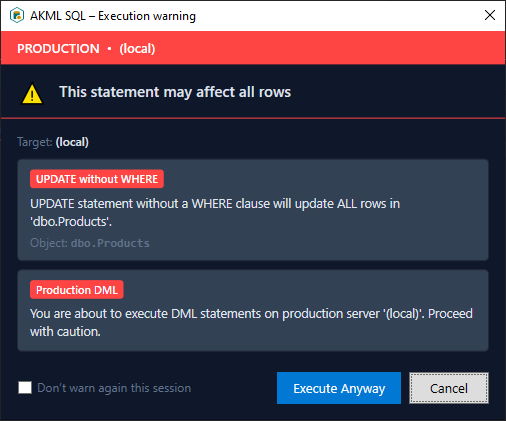
- Production server warning — show a warning when the query window is connected to a production server.
- DELETE without WHERE and UPDATE without WHERE — warn before running a
DELETEorUPDATEthat would change every row. - DROP confirmation and TRUNCATE confirmation — ask before running
DROPorTRUNCATE. - Enable transaction reminder — remind you, on production servers, that a transaction is still open.
- Reminder interval — how often the reminder appears, in seconds.
Inserted code
What gets written for you when you complete a statement or insert an object from the list.
Objects & statements
- Insert column names — when you complete
INSERT INTOa table, add its column list. - Insert default values as comments — add each column's default value as a comment beside it.
- Convert positional parameters to named — when you complete
EXECa procedure, write each argument with its parameter name (@id = 1).
Qualification
- Qualify object names with schema — when a table or other object is inserted from the list: always add its schema (
dbo.Orders), add it only when it isn't your default schema, or never add it.
Aliases
These apply when Suggest table aliases is on (Suggestions › Behavior).
- Include the AS keyword — write
Orders AS orather thanOrders o. - Custom alias map — always use a given alias for an object. One per line, as
object = alias, for exampleCustomers = c. - Prefixes to ignore — prefixes to drop before an alias is made, one per line (with
tbl_,tbl_Ordersgets the aliaso).
Special characters
- Bracket identifiers — when to put inserted names in
[square brackets]: always, only when needed (reserved words, spaces), or never. - Add parentheses ( ) when inserting a function or data type — add
()after an inserted function or a data type that takes a size. - Automatically insert the corresponding closing character — when you type an opening character, add the closing one after the cursor. Choose which characters: single quote
', double quote", comment/* */, parenthesis( )and square bracket[ ].
Format
- Enable SQL formatter — turns Format SQL on or off.
- Active style — the formatting style Format SQL uses. You can also switch it from the AKML SQL menu -> Active Style.
- Formatting styles — Edit formatting styles… opens the Format Styles window, where you create and change styles.
- Show active style in status bar — show the active style's name in the SSMS status bar.
- Team style folder — a shared folder of styles for your team. Use … to browse for it; leave it empty to turn team styles off.
- When you run Format SQL, AKML SQL will: — what Format SQL does to your code: Apply layout, Apply casing, Semicolons (insert, remove, or leave as written), Square brackets (add, remove, or leave as written), Expand wildcards and Qualify object names.
- Create backups before formatting — keep a copy of each file before Bulk Format changes it.
See Formatting SQL for styles, the Format Styles window and these actions.
Queries › Results & execution
Query results
- Aggregate statistics — show the sum, average, count, minimum and maximum of the selected grid cells.
- Highlight NULL cells — make
NULLvalues stand out in the results grid. - Row numbers — show a row-number column.
- Save 15+ digit numbers as text — when you export to Excel, save long numbers as text so Excel doesn't round them.
Execution
- Execution timer — show how long the current query has been running in the status bar.
- Multi-database execution — allow running one query against several databases.
- Notification threshold — how long a query must run, in seconds, before AKML SQL shows a long-running query notification.
Queries › History
Settings for the SQL History window and for reopening queries when SSMS starts.
- Enable SQL history — record the queries you run. Takes effect after SSMS restarts.
- Group repeated runs of the same query — show one row per query tab, with its runs and versions inside, instead of one row per run.
- Maximum query size — the longest query text kept, in KB. A longer query is cut, and its preview says so.
- Remember advanced search settings — keep the Advanced search filters between sessions.
- Restore open queries when SSMS starts — reopen the query tabs that were open when SSMS last closed or crashed. Unsaved query text is kept in SQL History too.
- When restoring — reopen them at once (Always), ask which ones to reopen (Ask), or don't (Never).
- Maximum number of queries to restore — the newest are reopened first.
- Automatically reconnect restored queries — connect each reopened query to the server and database it last ran on.
- Auto-save interval — how often the text of open query tabs is saved, in seconds.
- Max closed tabs to remember — how many closed tabs Ctrl+Shift+T can reopen. Older ones can still be opened from SQL History.
- Retention — how many days history is kept. Takes effect after SSMS restarts.
- Max entries — the most history entries kept. Takes effect after SSMS restarts.
- Disable automatic history trimming — keep everything, ignoring Retention and Max entries. Takes effect after SSMS restarts.
Starred queries are never removed by trimming.
Queries › Color
Color each query tab by the environment of its server and database, so you always know when you are on production.
- Enable tab coloring — turns tab colors on or off.
- Use gradient colors — shade each tab's color bar from light at the top to the environment color at the bottom.
- Rules — each rule matches a server (or server group pattern) and, optionally, a database, and gives it an environment. Rules are checked from the top and the first match wins: use the arrows to change the order, + Add server/database to add a rule and Remove to delete one.
- Edit environments… — rename the environments and change their colors. AKML SQL starts with PRODUCTION, STAGING, DEV and AZURE.
- Custom window title template — the SSMS window title. Use
{server},{database},{user}and{file}, for example{server} - {database} - SSMS.
Settings for restoring queries on start are on Queries › History.
Editor
Productivity
- Highlight occurrences — highlight every use of the name under the cursor.
- Bracket matching — highlight the matching
BEGIN/ENDor parenthesis. - Sticky scroll — keep the start of the current block (procedure,
BEGIN, and so on) visible at the top while you scroll. - Code minimap — show a small overview of the whole script beside the editor.
Refactoring
- Include comments in rename scope — when you rename something with Smart Rename, also rename it inside comments.
See Refactoring.
Navigation
Go to Definition (F12), Peek Definition (Alt+F12), Find All References (Shift+F12) and Object Search (Ctrl+T) are always on. They are on the AKML SQL menu -> Navigate. There are no settings for them.
Code analysis
- Enable code analysis — turns code analysis on or off.
- Analyze while typing — check your script as you type.
- Show in Error List — also list the issues in the SSMS Error List window.
- Rules — Manage rules… opens a window where you turn each rule on or off and set how serious it is.
You can also turn a rule off for one line, one script, the current session or everywhere — from the warning in the margin, or with a comment in your script. See Static Code Analysis.
AI assistance
Connect AKML SQL to an AI provider. See AI Assistance for what the AI features do.
- AI agents — your saved AI connections. Add, Duplicate and Remove them, and use Set as active to choose the one used by default.
- Selected agent — the settings of the agent selected in the list: Name, Enabled, AI Provider, Model, API Key and Endpoint URL (needed for Azure OpenAI and custom providers). Test connection checks them with a short test request without saving anything. API keys are stored encrypted.
- Feature assignments — which agent each feature uses (chat, text-to-SQL, explain, fix, optimize, index suggestions, inline suggestions). Use active agent follows whichever agent is active.
- Fallback order — the agents to try, in order, when the one answering fails.
- Privacy mode — what is sent to the provider: Full (your SQL and schema as they are), Schema Only (values in your SQL are hidden), Anonymous (values hidden and table and column names replaced), or Offline / Disabled (nothing is sent; AI features are off).
- Consent to cloud AI data sharing — required before a cloud provider receives your prompts and schema. Local providers such as Ollama and LM Studio don't need it.
- Max response tokens, Creativity (temperature), Timeout and Retries — how long answers can be, how varied they are, how long to wait for one, and how many times to retry after a temporary failure.
- Features — turn each AI feature on or off: Natural language to SQL, Explain SQL, Fix errors, Optimize queries, Index suggestions, Inline ghost text and Auto-fix on error.