Getting Started Updated
AKML SQL is a SQL development plugin for SQL Server Management Studio (SSMS) 22. It adds IntelliSense, SQL formatting, static code analysis, refactoring, snippets, query history, and optional AI assistance to the query editor you already use. AKML SQL is free and open source under the MIT license.
Requirements
- Windows 10 version 1809 or later, or Windows 11
- SQL Server Management Studio 22
Visual Studio 2026 is no longer supported. Upgrading removes the AKML SQL extension that earlier versions added to Visual Studio.
- A SQL Server database to connect to
Install AKML SQL
- Download
AKMLSQLSetup.exefrom the project page: https://github.com/mohamedkhamis/AKML-SQL - Run the installer. If SSMS is open, it offers to close it for you.
- Accept the license agreement.
- On the environment scan screen, check that SQL Server Management Studio 22 is ticked. (Untick it to install only the web edition.)
- Click Install, then Finish.
- Start SSMS. AKML SQL loads automatically.
Re-running the installer over an existing installation upgrades it in place. Your settings, styles, and snippets are kept.
Find the commands
AKML SQL adds its own AKML SQL menu to the SSMS 22 menu bar. Format Document, Format Selection, Active Style and SQL History sit at the top; everything else is grouped under Formatting, Refactor, Navigate, Tabs, AI (shown when AI is turned on), Tools and Help.
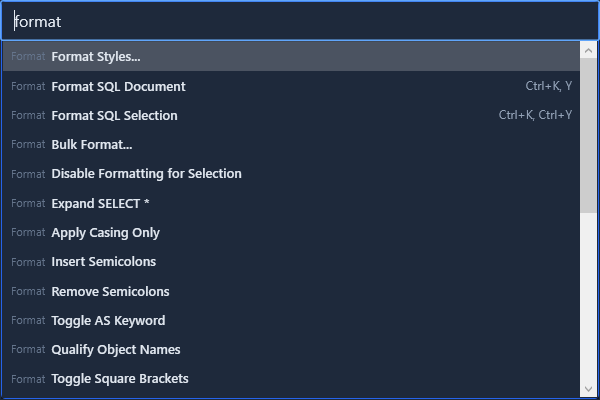
The editor's right-click menu has Format Document and Active Style, and the Command Palette (Ctrl+Shift+P) finds any command or option by name.
Open the Options dialog
- Open AKML SQL -> Options….
- Pick a page in the tree on the left, or type in the search box (Ctrl+E) to jump to a setting.
Each feature area (suggestions, formatting, snippets, code analysis, refactoring, AI) has its own page; Options describes every page. Settings are stored in %AppData%\AKML SQL\config.json and apply immediately. See the Configuration reference for every setting.
Check for updates
- AKML SQL checks for updates automatically on startup (you can turn this off in Options).
- To check manually, use AKML SQL -> Help -> Check for Updates.
- When a newer version is ready, Windows shows a notification, and SSMS offers it once at startup (Install now / Later).