SQL History Updated
AKML SQL records every query you execute — automatically, without you saving anything. The history is crash-safe: if SSMS closes unexpectedly, your executed queries are still there on the next start.
Open the history window
Press Ctrl+Alt+H (default) or open it from the AKML SQL menu -> SQL History.
The three panels
The history window has three panels:
- Queries — your queries, grouped by date: Today, Yesterday, This week, Last week, This month and Older, each with a count. Each row shows the query's name (its tab name or file name), and the server and database it ran on. When a tab-color rule matches the server, the environment name (for example PRODUCTION) is shown in its color. A query that was never run is marked Not executed.
- Versions — the saved versions of the selected query, newest first. A new version is captured when you run the query or close its tab, so you can see how the query evolved.
- Preview — the full SQL text of the selected version, with syntax highlighting. You can select and copy text in it.
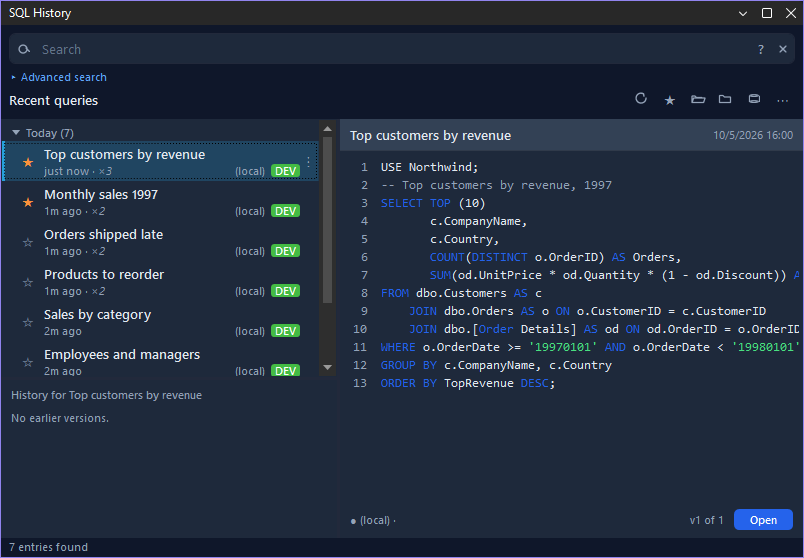
A bar on the left edge of a row means the query is open in a tab right now.
The window updates by itself: a query you run shows up within about a second, and the selection and scroll position are kept. If AKML SQL's background service isn't running, the window says History is unavailable and offers Retry.
Find an old query
Type in the search box. The list filters shortly after you stop typing (press Enter to search at once), and the first result is selected. Search looks in the SQL text, the query name, the file path, the server and the database. Esc clears the search; pressing it again clears the filters too.
Click ? beside the search box for the search syntax:
| Search | Finds |
|---|---|
orders cust |
Queries containing every word — the start of a word is enough (cust finds Customers) |
"order details" |
An exact phrase |
cust* |
Words starting with "cust" |
orders OR invoices |
Either word |
orders NOT archive |
The first word but not the second |
name:monthly |
Query (tab) name contains "monthly" |
path:Reports |
File path contains "Reports" |
sql:"GROUP BY" |
Only the SQL text |
server:prod-sql |
Ran on a server |
database:Northwind (or db:Northwind) |
Ran in a database |
starred:true |
Starred queries (starred:false for the rest) |
open:true |
Queries open in a tab now (open:false for closed ones) |
date:[20260901 TO 20260930] |
Ran between two dates; use * for an open end |
Advanced search
Click Advanced search under the search box to narrow the list without typing syntax:
- Period — Everything, Last week, Last month, Last 3 months, or Custom (pick the dates).
- Server and Database — chosen from everything in your history, not only the rows loaded so far.
- Starred and Open — only starred queries, or only queries open in a tab.
- Reset — clears them all.
The filters in use are shown as chips; click a chip's × to remove that filter. To keep your Advanced search settings between sessions, turn on Remember advanced search settings in Options.
Star and filter entries
- Click the star on an entry (or press Space) to star it. Starred queries are never removed by automatic cleanup.
- The toolbar buttons show only starred queries, only queries open in a tab, only closed ones, or narrow the list to a server or database.
Open, copy or re-run a query
Select a query, then use Open, or the row's ⋯ menu (also on right-click):
- Open query — switches to the query's tab when it is open; otherwise opens it in a new tab with its text.
- Copy SQL — copies the text.
- Re-execute — runs it again on the server and database it ran on. If that connection isn't known, the text opens in a new tab for you to connect and run.
- Rename query — gives the query a name of its own (not while it is open in a tab, since an open query takes its tab's name).
- Compare… — see below.
- Remove query and its history — removes the query and all its versions, after asking.
- Remove queries older than this… — removes every older query, after asking. Starred queries are kept.
Open, Copy SQL and Re-execute use the version selected in the Versions panel, so you can go back to an earlier edit by picking it first.
The toolbar's ⋯ menu has Export… (save your history as a CSV, JSON or SQL file) and Clear history….
Compare versions
- Right-click an earlier version in the Versions panel and choose Compare with current to see what changed since.
- Compare… on a row compares the query's previous version with its current text. Select two queries (Ctrl+click) and choose Compare… to compare them with each other.
The comparison window shows the two texts side by side, labelled with name and time, with added, removed and changed lines highlighted.
Restore queries after a restart
When Restore open queries when SSMS starts is on (in Options), AKML SQL reopens the query tabs that were open when SSMS last closed — or crashed — including tabs that were never saved. Depending on When restoring, it reopens them at once, asks which ones to reopen, or leaves them closed. It can also reconnect each one to the server and database it last ran on.
The text of open query tabs is saved regularly (every Auto-save interval), so a crash costs you at most the edits made since the last save.
A query tab you closed stays in SQL History too: find it with the closed filter (or open:false) and open it again. Ctrl+Shift+T reopens the most recently closed tabs directly.
Use the keyboard
| Where | Key | Action |
|---|---|---|
| Search box | Enter | Search now |
| Search box | Esc | Clear the search; press again to clear the filters |
| Query list | ↑ ↓ Home End | Move the selection |
| Query list | Enter | Open the query |
| Query list | Delete | Remove the query and its history (asks first) |
| Query list | F2 | Rename the query |
| Query list | Ctrl+C | Copy the selected version's SQL |
| Query list | Space | Star or un-star |
| Anywhere | Tab / Shift+Tab | Move between the list, the versions and the preview |
| Preview | Ctrl+A, Ctrl+C | Select all, copy |
| Anywhere | F1 | Open this help page |
Keep history under control
History older than the Retention period, and entries beyond Max entries, are removed automatically — starred queries are always kept. Both are set in Options, where you can also turn history off, limit the size of the query text kept, or turn automatic trimming off altogether.